How to Use CodeAura Themes
Transform your VS Code with beautiful, custom themes in just 4 simple steps
What You'll Get
Complete Override
Replaces any existing theme completely
Full UI Theming
Colors for editor, sidebar, terminal & more
Instant Apply
No restart required - changes apply immediately
Step-by-Step Guide
Choose Your Theme
Browse through our curated collection of themes and find the perfect one for your coding style.
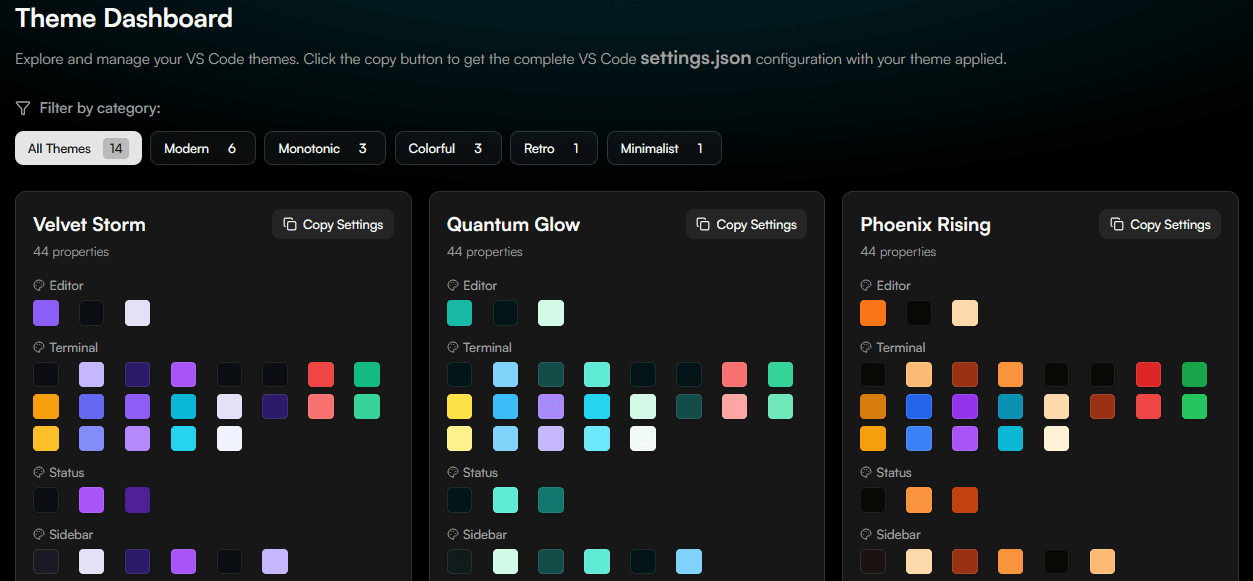
Copy Theme Settings
Click the 'Copy Settings' button to copy the complete VS Code configuration to your clipboard.

Open VS Code Settings
Open your VS Code settings.json file using the Command Palette or settings menu.
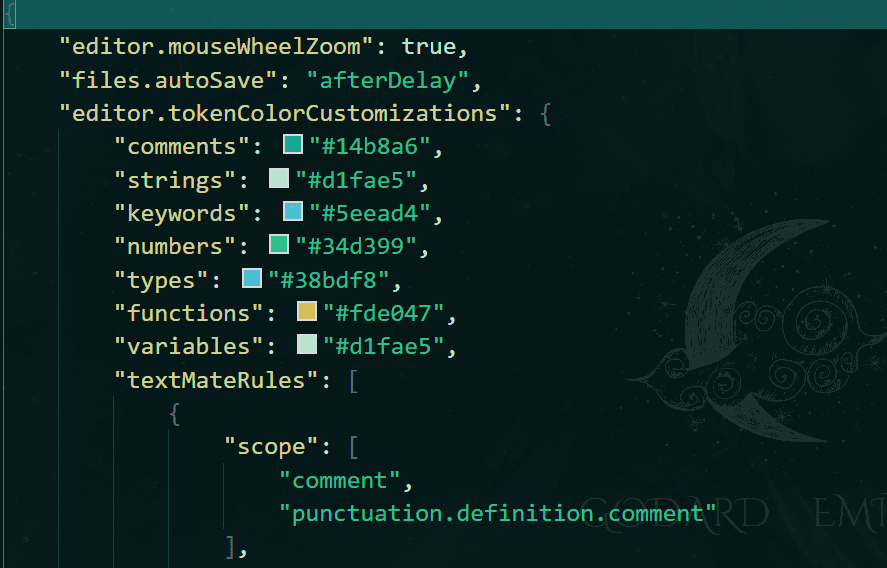
Apply Your Theme
Paste the copied settings and save the file. Your theme will be applied instantly!
Method 1: Command Palette (Recommended)
Type "settings json" → Select "Preferences: Open User Settings (JSON)"
Method 2: Settings Menu
1. Go to File → Preferences → Settings
2. Click the "Open Settings (JSON)" icon in the top-right
Look for the file icon with curly braces
Example Common Settings Structure
{
  "editor.mouseWheelZoom": true,
  "files.autoSave": "afterDelay",
  "editor.tokenColorCustomizations": {
    "comments": "#8b5cf6",
    "strings": "#10b981",
    "keywords": "#f59e0b"
  },
  "workbench.colorCustomizations": {
    "editor.background": "#0d0b14",
    "editor.foreground": "#e4e0f7",
    "statusBar.background": "#0d0b14",
    "statusBar.foreground": "#a855f7",
    // ... 200+ more color properties
  }
}
Settings File Locations
%APPDATA%\Code\User\settings.json~/Library/Application Support/Code/User/settings.json~/.config/Code/User/settings.json🛠️ Troubleshooting
Theme not applying?
- • Check JSON syntax for errors
- • Try restarting VS Code
- • Use Ctrl/Cmd + Shift + P → "Developer: Reload Window"
Colors look different?
- • Check your monitor color profile
- • Verify all settings were pasted correctly
- • Disable conflicting extensions temporarily
Ready to Transform Your VS Code?
Choose from our collection of beautiful themes and start coding in style!
Browse All Themes